


React Native Vision Camera vs Expo Camera vs Expo ImagePicker 2026
TL;DR
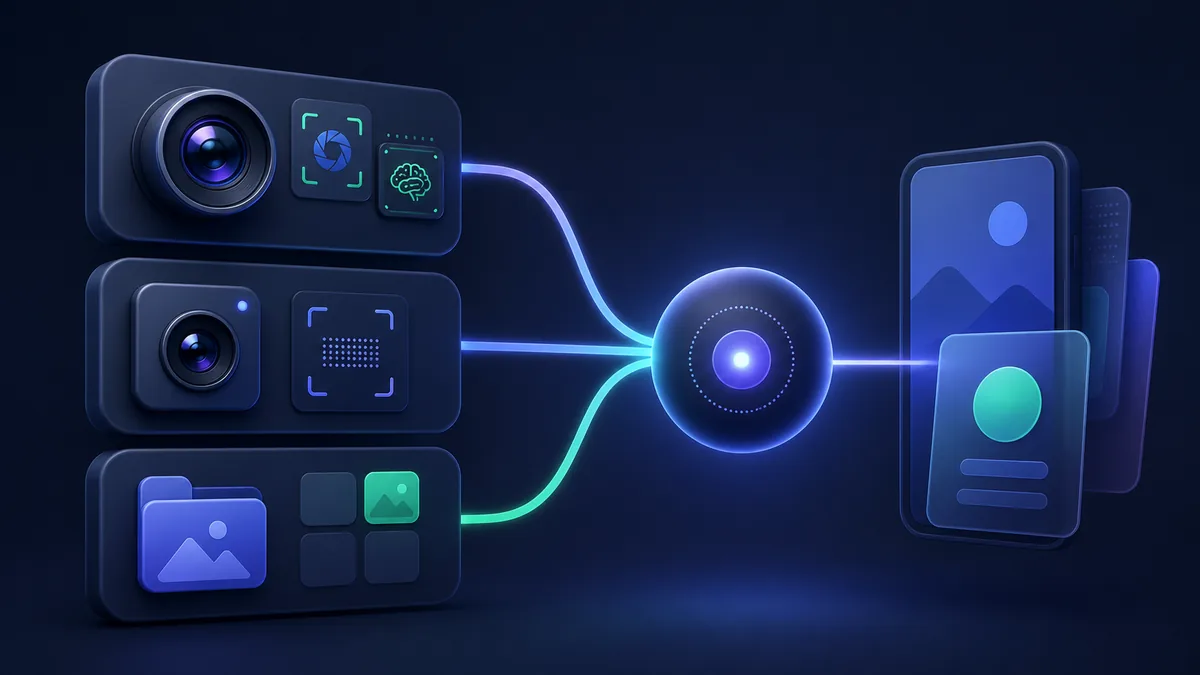
Camera integration in React Native is layered: you need different tools for different camera use cases. react-native-vision-camera (VisionCamera) is the high-performance camera library — frame processors run on the GPU thread, enabling real-time ML inference, QR scanning, barcode detection, and custom computer vision directly from live camera feed. Expo Camera is the SDK-native camera — full camera preview with photo/video capture, simple permissions handling, and built into the Expo ecosystem; perfect for standard camera screens. Expo ImagePicker is not a camera itself but a media picker — uses the native OS image picker (photo library + optional camera), ideal when you just need "select a photo from gallery or take a photo." For ML/AI on camera frames: VisionCamera. For a custom camera screen: Expo Camera. For pick-a-photo flows: Expo ImagePicker.
Key Takeaways
- VisionCamera frame processors run on GPU thread — zero JS bridge overhead, real-time 60fps analysis
- Expo Camera works inside Expo Go — no bare workflow required for basic camera
- Expo ImagePicker uses the native OS picker — no custom camera UI needed for simple use cases
- VisionCamera requires New Architecture — JSI/Fabric required for frame processors
- VisionCamera GitHub stars: 7k+ — the standard for advanced camera work
- Expo Camera supports QR scanning —
BarcodeScannerin basic cases without VisionCamera - All three require camera permissions —
expo-permissionsor platform-native permissions
Camera Use Cases and the Right Tool
Use Case → Library
─────────────────────────────────────────────────────
Pick photo from gallery only     → Expo ImagePicker
Take a photo (no custom UI)      → Expo ImagePicker (camera option)
Custom camera UI + photo/video   → Expo Camera
Real-time QR/barcode scan        → Expo Camera (simple) or VisionCamera
Face detection, AR, pose detect  → VisionCamera + frame processor
Document scanning                → VisionCamera + frame processor
Custom ML inference on frames    → VisionCamera + frame processor (JSI)
High-quality video recording     → VisionCamera
Portrait / slow-mo video         → VisionCamera (device format control)
Expo ImagePicker: Native OS Picker
Expo ImagePicker opens the native iOS/Android media picker. No custom camera UI, no permissions dialogs to manage beyond the initial ask — the OS handles everything.
Installation
npx expo install expo-image-picker
Basic Photo Picking
import * as ImagePicker from "expo-image-picker";

export function useImagePicker() {
  const pickImage = async (): Promise<string | null> => {
    // Request permissions (iOS only — Android grants automatically)
    const { status } = await ImagePicker.requestMediaLibraryPermissionsAsync();
    if (status !== "granted") {
      alert("Camera roll access is required to pick photos.");
      return null;
    }

    const result = await ImagePicker.launchImageLibraryAsync({
      mediaTypes: ImagePicker.MediaTypeOptions.Images,
      allowsEditing: true,          // Crop after selection
      aspect: [1, 1],               // Square crop
      quality: 0.8,                 // JPEG compression (0-1)
    });

    if (result.canceled) return null;
    return result.assets[0].uri;
  };

  const takePhoto = async (): Promise<string | null> => {
    const { status } = await ImagePicker.requestCameraPermissionsAsync();
    if (status !== "granted") return null;

    const result = await ImagePicker.launchCameraAsync({
      mediaTypes: ImagePicker.MediaTypeOptions.Images,
      allowsEditing: true,
      aspect: [4, 3],
      quality: 1,
    });

    if (result.canceled) return null;
    return result.assets[0].uri;
  };

  return { pickImage, takePhoto };
}
Avatar Upload Flow
import * as ImagePicker from "expo-image-picker";
import { Image, Pressable, View } from "react-native";

function AvatarPicker({ onUpload }: { onUpload: (uri: string) => void }) {
  const [uri, setUri] = useState<string | null>(null);

  const handlePick = async () => {
    const result = await ImagePicker.launchImageLibraryAsync({
      mediaTypes: ImagePicker.MediaTypeOptions.Images,
      allowsEditing: true,
      aspect: [1, 1],
      quality: 0.9,
      base64: false,
    });

    if (!result.canceled) {
      const imageUri = result.assets[0].uri;
      setUri(imageUri);
      onUpload(imageUri);
    }
  };

  return (
    <Pressable onPress={handlePick} style={styles.avatarContainer}>
      {uri ? (
        <Image source={{ uri }} style={styles.avatar} />
      ) : (
        <View style={styles.placeholder}>
          <Text>Tap to upload</Text>
        </View>
      )}
    </Pressable>
  );
}
Multiple Image Selection
const result = await ImagePicker.launchImageLibraryAsync({
  mediaTypes: ImagePicker.MediaTypeOptions.All,  // Photos and videos
  allowsMultipleSelection: true,                 // iOS 14+, Android
  selectionLimit: 5,                             // Max 5 items
  quality: 0.8,
});

if (!result.canceled) {
  const images = result.assets;  // Array of selected images
  const uris = images.map((img) => img.uri);
}
Expo Camera: Custom Camera Screen
Expo Camera provides a React component that renders a live camera preview with controls for capturing photos and videos.
Installation
npx expo install expo-camera
Basic Camera Screen
import { CameraView, CameraType, useCameraPermissions } from "expo-camera";
import { useState, useRef } from "react";
import { Button, StyleSheet, Text, TouchableOpacity, View } from "react-native";

export function CameraScreen() {
  const [facing, setFacing] = useState<CameraType>("back");
  const [permission, requestPermission] = useCameraPermissions();
  const cameraRef = useRef<CameraView>(null);
  const [photo, setPhoto] = useState<string | null>(null);

  if (!permission) {
    return <View />;
  }

  if (!permission.granted) {
    return (
      <View style={styles.container}>
        <Text>Camera permission is required.</Text>
        <Button onPress={requestPermission} title="Grant Permission" />
      </View>
    );
  }

  const takePhoto = async () => {
    if (!cameraRef.current) return;
    const pic = await cameraRef.current.takePictureAsync({
      quality: 0.9,
      base64: false,
      skipProcessing: false,
    });
    if (pic) setPhoto(pic.uri);
  };

  const toggleFacing = () => {
    setFacing((current) => (current === "back" ? "front" : "back"));
  };

  return (
    <View style={styles.container}>
      <CameraView style={styles.camera} facing={facing} ref={cameraRef}>
        <View style={styles.buttonContainer}>
          <TouchableOpacity onPress={toggleFacing} style={styles.button}>
            <Text style={styles.text}>Flip</Text>
          </TouchableOpacity>
          <TouchableOpacity onPress={takePhoto} style={styles.shutterButton} />
        </View>
      </CameraView>
    </View>
  );
}
QR Code Scanning
import { CameraView, useCameraPermissions } from "expo-camera";

function QRScanner({ onScan }: { onScan: (data: string) => void }) {
  const [permission, requestPermission] = useCameraPermissions();
  const [scanned, setScanned] = useState(false);

  if (!permission?.granted) {
    return <Button onPress={requestPermission} title="Allow Camera" />;
  }

  return (
    <CameraView
      style={StyleSheet.absoluteFillObject}
      facing="back"
      onBarcodeScanned={scanned ? undefined : (result) => {
        setScanned(true);
        onScan(result.data);
        // Re-enable after delay
        setTimeout(() => setScanned(false), 2000);
      }}
      barcodeScannerSettings={{
        barcodeTypes: ["qr", "pdf417", "code128", "ean13"],
      }}
    />
  );
}
Video Recording
const startRecording = async () => {
  if (!cameraRef.current) return;

  const video = await cameraRef.current.recordAsync({
    maxDuration: 60,    // Max 60 seconds
    mute: false,
    codec: "h264",      // iOS only
  });

  if (video) {
    console.log("Video URI:", video.uri);
  }
};

const stopRecording = () => {
  cameraRef.current?.stopRecording();
};
react-native-vision-camera: High-Performance Camera
VisionCamera is built for demanding camera use cases: real-time frame processing, ML inference, custom recording formats, and full camera control.
Installation
npx expo install react-native-vision-camera
# Requires Expo bare workflow or React Native CLI
# Also requires New Architecture (Fabric + JSI) for frame processors
Basic Camera View
import { Camera, useCameraDevice, useCameraPermission } from "react-native-vision-camera";

export function VisionCameraView() {
  const device = useCameraDevice("back");
  const { hasPermission, requestPermission } = useCameraPermission();

  useEffect(() => {
    if (!hasPermission) requestPermission();
  }, [hasPermission]);

  if (!hasPermission || !device) return null;

  return (
    <Camera
      style={StyleSheet.absoluteFill}
      device={device}
      isActive={true}
      photo={true}       // Enable photo capture
      video={false}
      audio={false}
    />
  );
}
Taking Photos
import { Camera, useCameraDevice } from "react-native-vision-camera";
import { useRef } from "react";

function PhotoCamera() {
  const camera = useRef<Camera>(null);
  const device = useCameraDevice("back");

  const takePhoto = async () => {
    const photo = await camera.current?.takePhoto({
      qualityPrioritization: "quality",  // "speed" | "balanced" | "quality"
      enableAutoRedEyeReduction: true,
      enableAutoDistortionCorrection: false,
      flash: "auto",
    });

    if (photo) {
      console.log("Photo path:", photo.path);
      console.log("Width:", photo.width, "Height:", photo.height);
    }
  };

  return (
    <Camera
      ref={camera}
      style={StyleSheet.absoluteFill}
      device={device!}
      isActive={true}
      photo={true}
    />
  );
}
Frame Processors: Real-Time Analysis
Frame processors are JavaScript functions that run on the GPU thread for every camera frame — no JS bridge, no dropped frames.
import { Camera, useCameraDevice, useFrameProcessor } from "react-native-vision-camera";
import { useSharedValue, runOnJS } from "react-native-reanimated";

// Frame processor for QR code detection
function QRScannerVision({ onDetect }: { onDetect: (data: string) => void }) {
  const device = useCameraDevice("back");
  const lastScan = useSharedValue<string>("");

  const frameProcessor = useFrameProcessor((frame) => {
    "worklet";
    // Use a Vision Camera plugin for barcode scanning
    // e.g., vision-camera-code-scanner
    const barcodes = scanBarcodes(frame, [BarcodeFormat.QR_CODE]);

    if (barcodes.length > 0) {
      const data = barcodes[0].displayValue ?? "";
      if (data !== lastScan.value) {
        lastScan.value = data;
        runOnJS(onDetect)(data);  // Call JS from UI thread
      }
    }
  }, []);

  return (
    <Camera
      style={StyleSheet.absoluteFill}
      device={device!}
      isActive={true}
      frameProcessor={frameProcessor}
    />
  );
}
ML Model Integration (Real-Time Pose Detection)
import { useFrameProcessor } from "react-native-vision-camera";
import { detectPose } from "vision-camera-pose-detection";  // Community plugin

function PoseDetector() {
  const device = useCameraDevice("front");

  const frameProcessor = useFrameProcessor((frame) => {
    "worklet";
    const poses = detectPose(frame);
    // poses contains keypoints: nose, shoulders, elbows, wrists, hips, knees, ankles
    // All running at 60fps on the GPU thread
    console.log("Detected poses:", poses.length);
  }, []);

  return (
    <Camera
      style={StyleSheet.absoluteFill}
      device={device!}
      isActive={true}
      frameProcessor={frameProcessor}
      fps={60}
    />
  );
}
Device Format Selection
import { Camera, useCameraDevice, useCameraFormat } from "react-native-vision-camera";

function ProCamera() {
  const device = useCameraDevice("back");
  const format = useCameraFormat(device, [
    { fps: 60 },                          // Prefer 60fps
    { photoResolution: "max" },           // Maximum photo resolution
    { videoResolution: { width: 3840, height: 2160 } },  // 4K video
  ]);

  return (
    <Camera
      style={StyleSheet.absoluteFill}
      device={device!}
      isActive={true}
      format={format}
      photo={true}
      video={true}
      fps={format?.maxFps ?? 30}
      hdr={true}
      lowLightBoost={device?.supportsLowLightBoost ?? false}
    />
  );
}
Feature Comparison
| Feature | Expo ImagePicker | Expo Camera | VisionCamera |
|---|---|---|---|
| Native OS picker | ✅ | ❌ | ❌ |
| Custom camera UI | ❌ | ✅ | ✅ |
| Frame processors | ❌ | ❌ | ✅ |
| Real-time ML | ❌ | ❌ | ✅ |
| QR scanning | ❌ | ✅ Basic | ✅ Advanced |
| Video recording | ✅ Pick only | ✅ | ✅ |
| 4K / HDR | Depends on OS | ❌ | ✅ |
| Front camera | ✅ | ✅ | ✅ |
| Expo Go | ✅ | ✅ | ❌ |
| New Architecture req. | ❌ | ❌ | ✅ (frame proc.) |
| Setup complexity | Very low | Low | High |
| GitHub stars | (Expo SDK) | (Expo SDK) | 7k+ |
When to Use Each
Choose Expo ImagePicker if:
- Users need to select photos from their gallery or take a quick photo
- No custom camera UI is needed — the native OS picker is fine
- You want the fastest path to "upload a profile picture" functionality
- Your app doesn't need live camera preview at all
Choose Expo Camera if:
- You need a custom camera UI (shutter button, flip camera, zoom controls)
- Basic QR/barcode scanning within the Expo managed workflow
- Photo and video capture with a camera preview component
- You're still on Expo Go or the managed workflow
Choose VisionCamera if:
- Frame-by-frame analysis is needed: QR scanning, face detection, pose estimation, AR
- Running on-device ML models against the live camera feed
- Maximum camera control: RAW capture, HDR, 4K video, slow motion, custom formats
- You're on the New Architecture (Expo bare workflow or React Native CLI)
Privacy Permissions and App Store Compliance
Camera permissions handling is one of the most consequential UX decisions in mobile development — a poorly worded permission prompt or premature permission request results in users denying access permanently, requiring them to navigate to Settings to re-enable it. Apple requires a camera usage description string in Info.plist (NSCameraUsageDescription) and microphone usage description (NSMicrophoneUsageDescription for video recording) that clearly explains why your app needs access. Vague descriptions like "Camera access required" are routinely rejected in App Store review; specific descriptions like "Camera is used to capture product photos for your listings" are approved. For Expo apps, these strings are configured in app.json under ios.infoPlist. Request permissions only when the user takes an action that requires them — not on app launch. Expo ImagePicker's requestMediaLibraryPermissionsAsync() and requestCameraPermissionsAsync() should be called immediately before the relevant picker launch, not in a useEffect at component mount. VisionCamera's useCameraPermission() hook provides requestPermission() which should similarly be called in response to a user action.
Frame Processor Plugin Ecosystem and Custom Native Modules
VisionCamera's frame processor system has an ecosystem of community plugins that provide common computer vision tasks without requiring you to write native code. vision-camera-code-scanner wraps Google's ML Kit barcode scanner, supporting 16 barcode formats including QR, EAN-13, Code-128, and PDF417. vision-camera-face-detector provides real-time face detection with landmark positions (eyes, nose, mouth) and head pose estimation. vision-camera-object-detection runs TensorFlow Lite models for custom object detection. For custom ML workloads, you can write your own frame processor plugin in Swift (iOS) or Kotlin (Android) that receives the raw camera frame buffer and returns structured data to JavaScript — this is how production AR applications and custom scanner apps integrate proprietary on-device models. The frame processor plugin API is JSI-based, meaning plugin execution happens on the UI thread with direct memory access, avoiding serialization overhead. Writing a custom plugin requires native mobile development experience but enables capabilities that no other React Native camera library can match.
Video Recording Quality, Formats, and Storage
VisionCamera gives the most granular control over video recording parameters. The useCameraFormat() hook lets you select the exact recording resolution (up to 4K/8K depending on device), frame rate (including 120fps/240fps slow motion on supported devices), and codec (H.264 or H.265/HEVC). H.265 produces files approximately 40% smaller than H.264 at the same quality, which is significant for apps where users record long videos. Expo Camera's video recording is simpler: recordAsync() accepts maxDuration, maxFileSize, and mute parameters but does not expose codec selection or resolution beyond what the platform provides by default. For apps where video quality and file size are critical — fitness apps, educational content, user-generated video platforms — VisionCamera's format control is essential. For apps where users occasionally record short clips and file size is not a primary concern, Expo Camera's simpler API is sufficient. Always test video recording on lower-end Android devices from your target market — hardware capabilities vary significantly, and format selections that work on a Pixel 8 may fail on devices with older camera APIs.
Migration Path from Expo Camera to VisionCamera
Teams that start with Expo Camera for simplicity and later need frame processors or advanced camera features face a migration to VisionCamera. The migration is not a drop-in replacement — the API surface is significantly different and VisionCamera requires the New Architecture and a bare Expo workflow (or React Native CLI). The migration steps are: eject from Expo managed workflow if necessary, install New Architecture dependencies, replace CameraView components with VisionCamera's Camera component, rewrite permission handling with useCameraPermission(), and rebuild custom camera screens against VisionCamera's props. Photo capture changes from cameraRef.current.takePictureAsync() to cameraRef.current.takePhoto() with different options structure. The VisionCamera output for photos is a file path rather than a URI, requiring file:// prefix adjustments in image upload code. Budget two to three days for the migration of a single camera screen, plus additional time for frame processor plugin integration if that is the migration driver. The investment is worthwhile if real-time analysis is genuinely required, but Expo Camera covers the majority of production camera use cases adequately.
Methodology
Data sourced from the official react-native-vision-camera documentation (mrousavy.com/react-native-vision-camera), Expo Camera documentation (docs.expo.dev/versions/latest/sdk/camera), Expo ImagePicker documentation, GitHub star counts as of February 2026, and community discussions in the Expo Discord and the React Native community on Twitter/X.
Related: React Native Reanimated vs Moti vs Skia for adding animations to your camera UI, or FlashList vs FlatList vs LegendList for displaying captured photos in a performant gallery.
See also: React vs Vue and React vs Svelte